I wanted to use an email address on my own domain, open the inbox in a browser, and let Codex check messages when I asked.
I already had a VPS, so I decided to host the email setup there too.
The first thing I needed to understand was which part did what. The mail server, the inbox you see in your browser, and the agent connection are separate pieces.
This is what I ended up using:
| Part | What I use | What it does |
|---|---|---|
| Hosting | Hetzner VPS | Runs the services and stores mail |
| Mail server | Stalwart | Sends, receives and stores messages |
| Browser inbox | Roundcube | Lets me read, write and organise email |
| DNS and web access | Cloudflare | Manages DNS and protects the inbox website |
| Agent connection | MCPcube | Gives an authorised agent access to the mailbox |
Stalwart handles mail delivery through SMTP. That is the mail transfer agent, or MTA, part of the setup. It also stores the messages and lets clients connect through protocols such as IMAP.
Roundcube is the client I actually use. I open it in a browser, sign in, and get an inbox. It connects to Stalwart to read and send mail.
Both are open source.
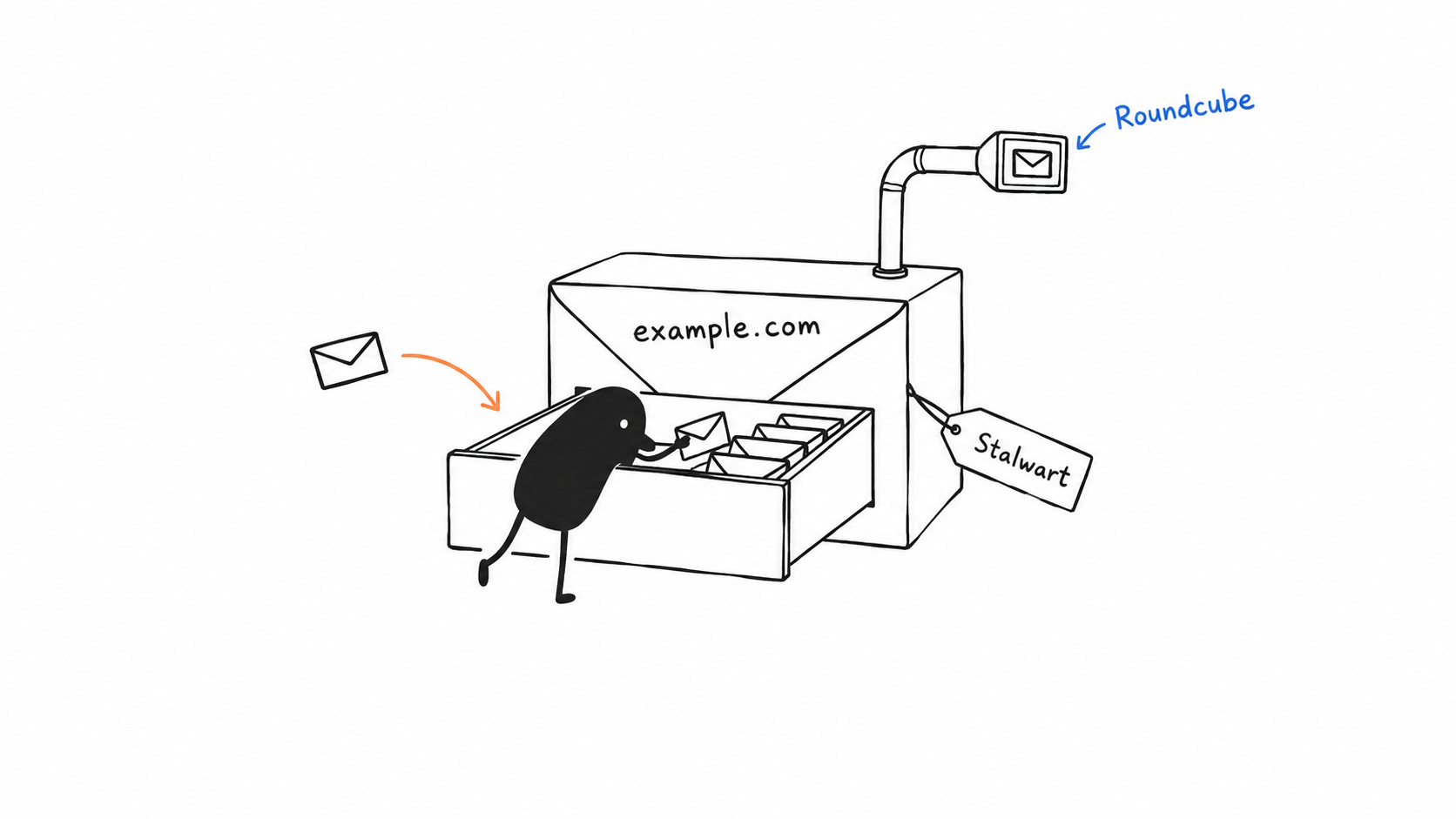
My website can stay where it is. Email uses the same domain, but it does not need to run on the same server as the website.
Using example.com as a placeholder, the addresses look like this:
| Address | Purpose |
|---|---|
[email protected] |
My mailbox |
mail.example.com |
The mail server |
inbox.example.com |
The browser inbox |
[email protected] |
An optional separate mailbox for an agent |
Before setting this up on a VPS, check whether the provider allows mail hosting and outbound SMTP on port 25. You also need a stable public IP and the ability to set reverse DNS.
The server needs to be able to exchange mail with other servers.
DNS is where the domain gets connected to that server.
| Record | What it tells other servers |
|---|---|
A |
The IP address of mail.example.com |
MX |
Where to deliver mail for example.com |
| SPF | Which servers may send for the domain |
| DKIM | The public key used to verify signed messages |
| DMARC | How to handle messages that fail its authentication checks |
| Reverse DNS | The hostname associated with the server’s IP |
The mail hostname needs to be DNS-only in Cloudflare. Normal SMTP delivery does not go through Cloudflare’s web proxy. Reverse DNS is configured with the VPS provider.
I also needed to preserve the website during the DNS move. Before changing nameservers, the existing records had to be copied into Cloudflare. Moving email should not take the website down.
With the DNS in place, I had Codex configure the domain and mailbox in Stalwart, then connect Roundcube through encrypted IMAP and authenticated SMTP.
The server also needs the correct hostname, TLS certificates and outgoing DKIM signing. The DKIM value comes from your own installation. It is not something to copy from an example.
For the browser inbox, I wanted access restricted to me.
Roundcube listens on the server’s loopback interface. Cloudflare Tunnel connects it to inbox.example.com, and Cloudflare Access controls who can reach it.
That means I sign in twice: once to pass Cloudflare, then again to open the mailbox in Roundcube.
This protects the inbox website. Other mail servers still need to reach SMTP to deliver messages. Closing that entrance would stop incoming email.
Once the setup was running, we tested it with a real exchange. I received a message from the new mailbox in Gmail, replied, and Codex confirmed that the reply had arrived in Stalwart.
That proved sending and receiving worked. SPF, DKIM and DMARC results need their own check in the received message headers. A message arriving does not prove every authentication setting is correct.
Then I connected the agent.
MCPcube is a community Roundcube plugin that exposes mailbox operations through MCP. I started with read-only access, so Codex could list and read messages without permission to send or delete anything.
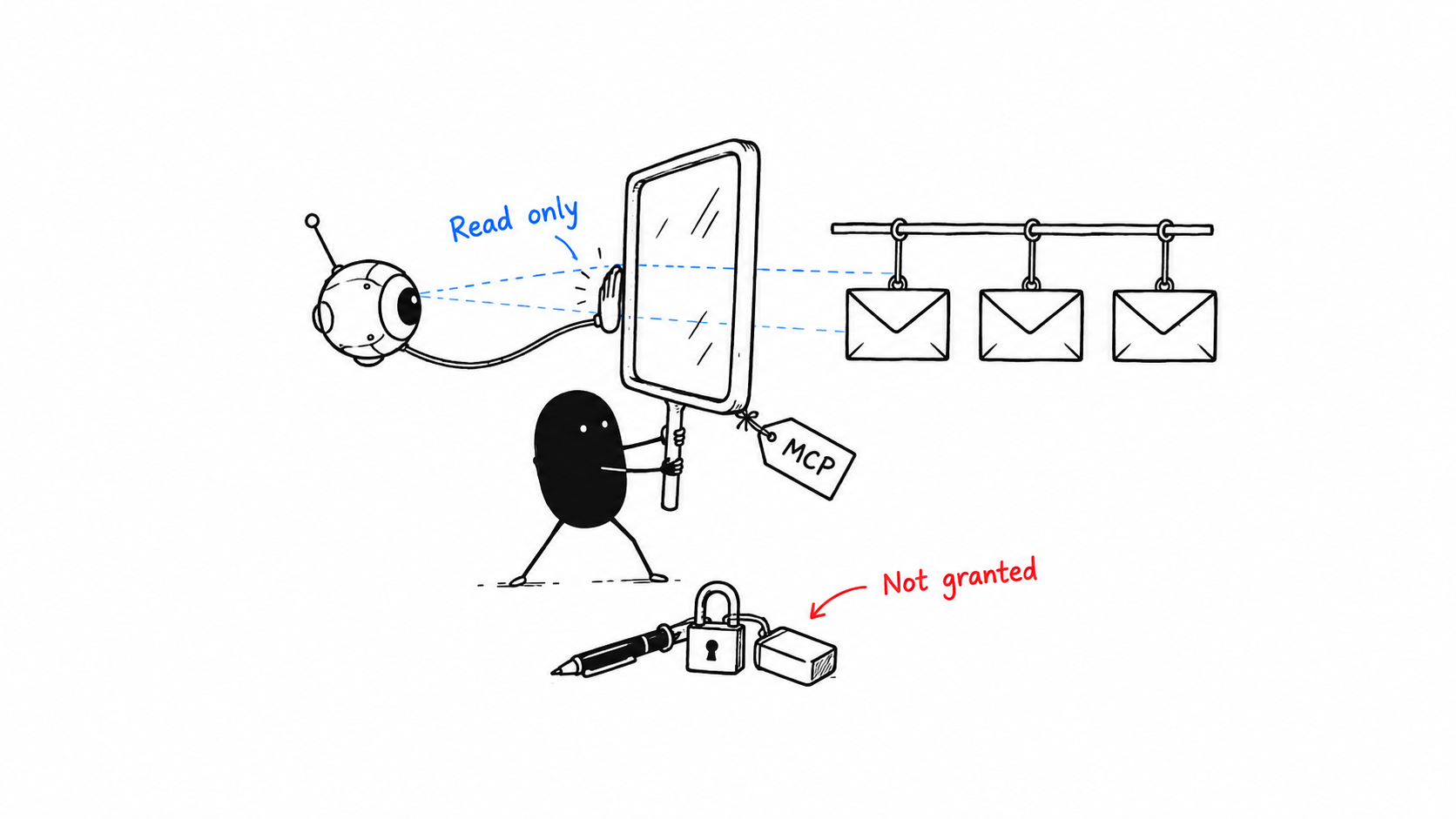
This part needed some work. We upgraded Roundcube, checked the plugin, and fixed a connection issue where it had lost the mailbox’s TLS and port settings.
Cloudflare also needed separate attention. Signing in through my browser did not automatically give Codex’s background requests access.
The connection now has two layers:
| Layer | What it allows |
|---|---|
| Cloudflare service credential | Codex can reach the protected MCP endpoint |
| Mailbox OAuth permission | Codex can perform the mail operations I approved |
After authorising it, we tested the connection by listing the messages in my inbox. Codex could see the setup email and my reply.
I later enabled sending too. Our first test hit two compatibility bugs in the plugin. After fixing those, Codex sent an email from my mailbox to Gmail through MCP. The connection now has read and send access. Deleting mail is still disabled.
An agent does not need a separate domain for this. If I want it to have its own address, I can create a mailbox such as [email protected] and give it access to that mailbox.
It also does not start watching or replying to email just because MCP is connected. That would be another workflow to set up.
For now, I have an address on my own domain, a browser inbox, and an agent that can read and send messages when I ask.
This also gives me the building blocks for my own AgentMail-style product. The mail server handles delivery and storage, Roundcube gives me a browser inbox, and MCP gives agents access through explicit permissions.
The next part is connecting those pieces into repeatable workflows: trigger an agent when mail arrives, track delivery and failures, and retry jobs without sending duplicate replies.